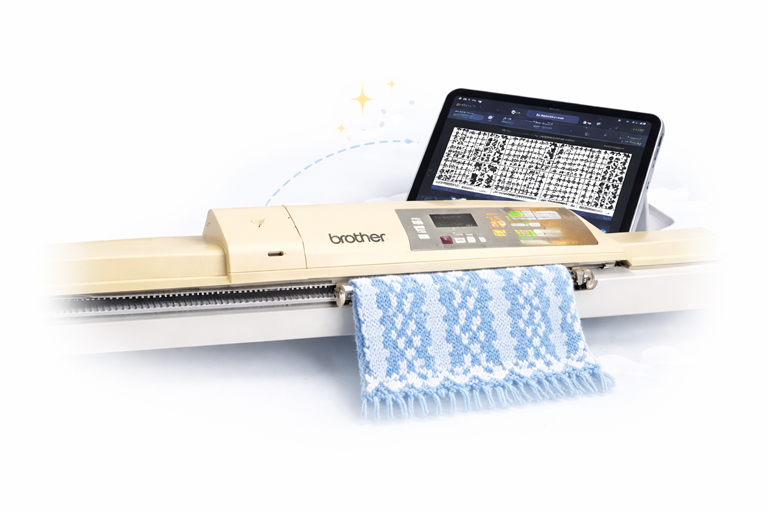
Get Started with eKnitter 5.27 WebAPP

Simple steps to connect your eKnitter, open the WebApp, and start knitting.


Step 1 – Connect eKnitter to Wi-Fi

Connect your eKnitter to your home Wi-Fi before you start knitting.
This only needs to be done once.
If your eKnitter is already connected but you cannot find the WebApp, see Access your WebApp.

Make sure you have a working Wi-Fi network in your knitting space.

Set up Wi-Fi

  1. Turn on your eKnitter.
  2. Open your Wi-Fi list on your phone, tablet, or computer.
  3. You will see a new Wi-Fi device — connect to it.
  4. A setup page opens automatically in your browser.
    (This may take a few seconds.)
    If it does not open, enter:
http://192.168.4.1/WifiConfig/
  1. Enter your Wi-Fi name and password.
    (Pay attention to upper and lower case letters.)
  2. Save the settings.

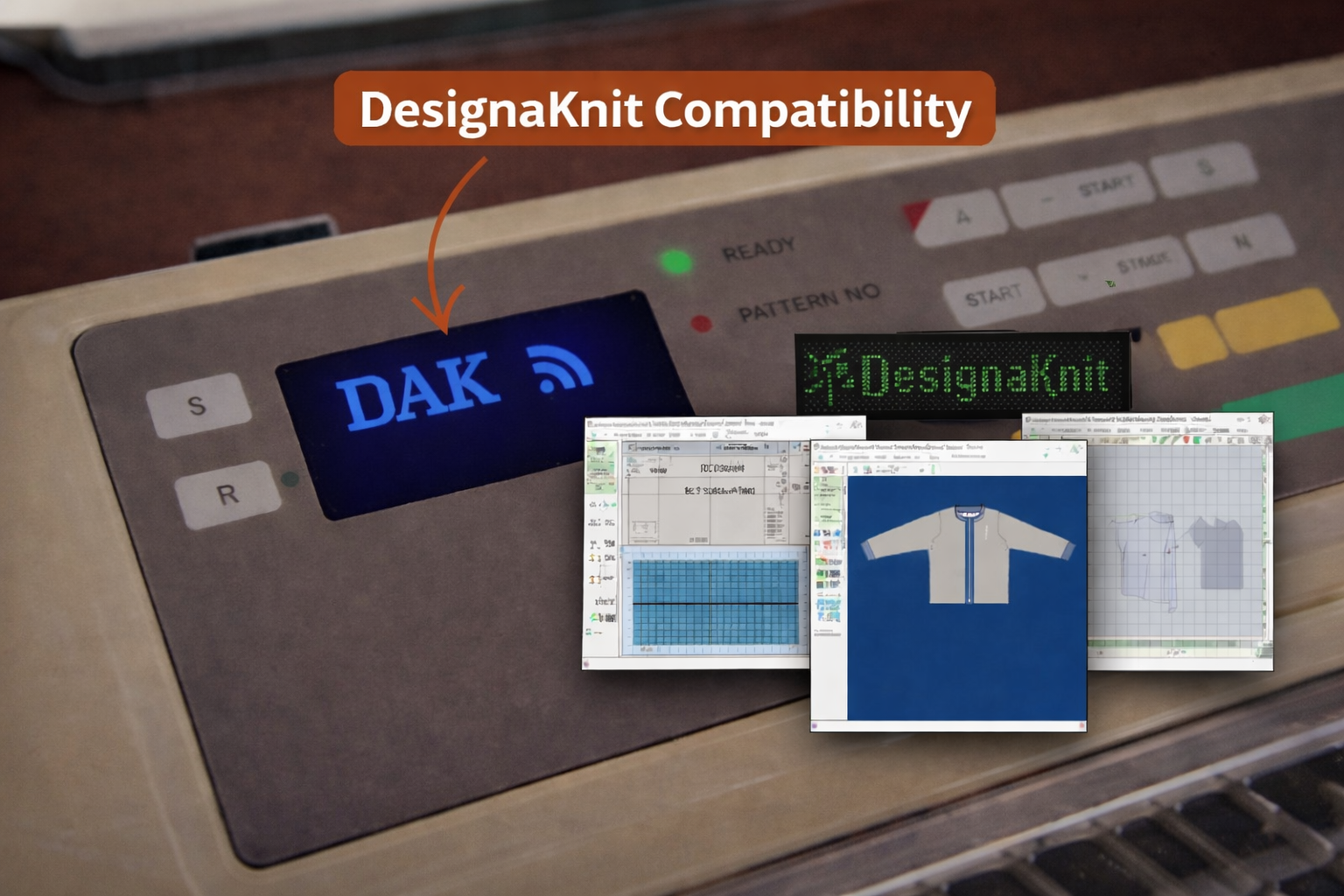
If everything was entered correctly, a Wi-Fi symbol will appear on your eKnitter display.

From now on, your eKnitter will connect automatically whenever you turn it on.


If Wi-Fi does not connect

If the display is black or shows only an X, your Wi-Fi details were entered incorrectly and eKnitter cannot connect.

You will need to reset the Wi-Fi settings. Read: Reset Wi-Fi


Step 2 – Access your eKnitter WebApp

The new eKnitter WebApp is available for all eKnitters running Release version 5.27 or higher.
Latest releases are available here.


Step 3 – Check your version

  1. Turn on your eKnitter.
  2. The display must show Version 5.27 or higher.

Step 4 – Open the WebApp

Open a web browser on your phone, tablet, or computer and enter your personal eKnitter address:

http://eknitter-XXXXXX/

or

http://XXX.XXX.X.XXX/

Each eKnitter has its own unique name and address.


Step 5 – Find your eKnitter name

You can find your personal eKnitter name in two places:

  • On the display
    Press the green button until the eKnitter name and IP address appear.
  • On the sticker on your device
    Example: eKnitter-XXXXXX

Important

  • Your eKnitter must be powered on
  • It must be connected to Wi-Fi (Wi-Fi symbol visible on the display)

Only then can the WebApp be opened.


Tip

1. Save a Home Screen Link

Add eKnitter to your device so it’s always ready when you turn your machine on.
One tap, and you’re in — no typing, no searching.

On iPhone or iPad, tap Share and choose Add to Home Screen.
On Android, open the menu and choose Add to Home screen.
On Windows or Mac, open your browser menu and choose Create shortcut.

eKnitter will appear like an app on your device — always just one tap away.

2. Open with a QR Code

If your machine is used by more than one person, a QR code is the easiest way to get everyone started.

Create a QR code once, place it on your machine, and anyone can simply scan it with their phone.
No links to type. No setup. Just scan — and eKnitter opens instantly.

http://eknitter- /
Enter only the name printed on your board (e.g. 1bae04).
Preview
QR Preview
Create a QR, then print it as a sticker.

Step 6 – Send a pattern to your machine

In the video below, I show how to send your pattern to your machine.


eKnitter WebApp – Quick Guide (Knit & Settings)

1) What do I see at the top?

There is always a bar at the top of the screen.

1) What do I see at the top?

At the top of your screen you’ll always see a simple navigation bar.
It lets you switch between Knitting and Settings.

Good to know:
You will always see either Knit or Config — never both at the same time.
They simply switch places so you can easily move back and forth.

What you seeWhat it doesWhen you see it
eKnitter logo / eKnitter nameOpens the home or status screenAlways
KnitTakes you to your knitting workspace (patterns, grid, preview)When Settings are open
ConfigOpens Settings (Wi-Fi, machine options, advanced settings, )When you are on the knitting scree
Tip: If you’re not sure where you are, tap Knit — it always brings you back to your knitting screen. 


2) Load a Pattern

This is how you bring a pattern into your knitting screen.

What you seeWhat it does
LoadOpens your file picker to choose a pattern
PNG fileImage pattern format (1 Pixel one needle)
× (small cross)Removes the currently loaded patter

3) Adjust the View (Fit & Zoom)

You can make your pattern larger or smaller:

  • Fit – fits the pattern nicely into your window
  • – makes the pattern smaller
  • + – makes the pattern larger
  • The percentage shows your current size
Tip: If your pattern ever disappears, just tap Fit — and it comes back into view. 

4) Select the Row You Are Knitting

At the top right you’ll see Pattern Row with − / number / +.

What you seeWhat it does
Goes one row back
+Goes one row forward
Pattern Row (text)Resets to row 1
Good to know: You can also click directly into your pattern to change Pattern Rows.

5) Set the Start Position (Start Needle)

Below your pattern you will find the control tabs:
Basic/ Variations / Jacquard / Helper Colours

Go to Basic.


5.1 Choose Your Pattern Mode

ModeWhat it means
MotifThe pattern repeats only as many times as you set
Allover PatternThe pattern runs across the full needle bed

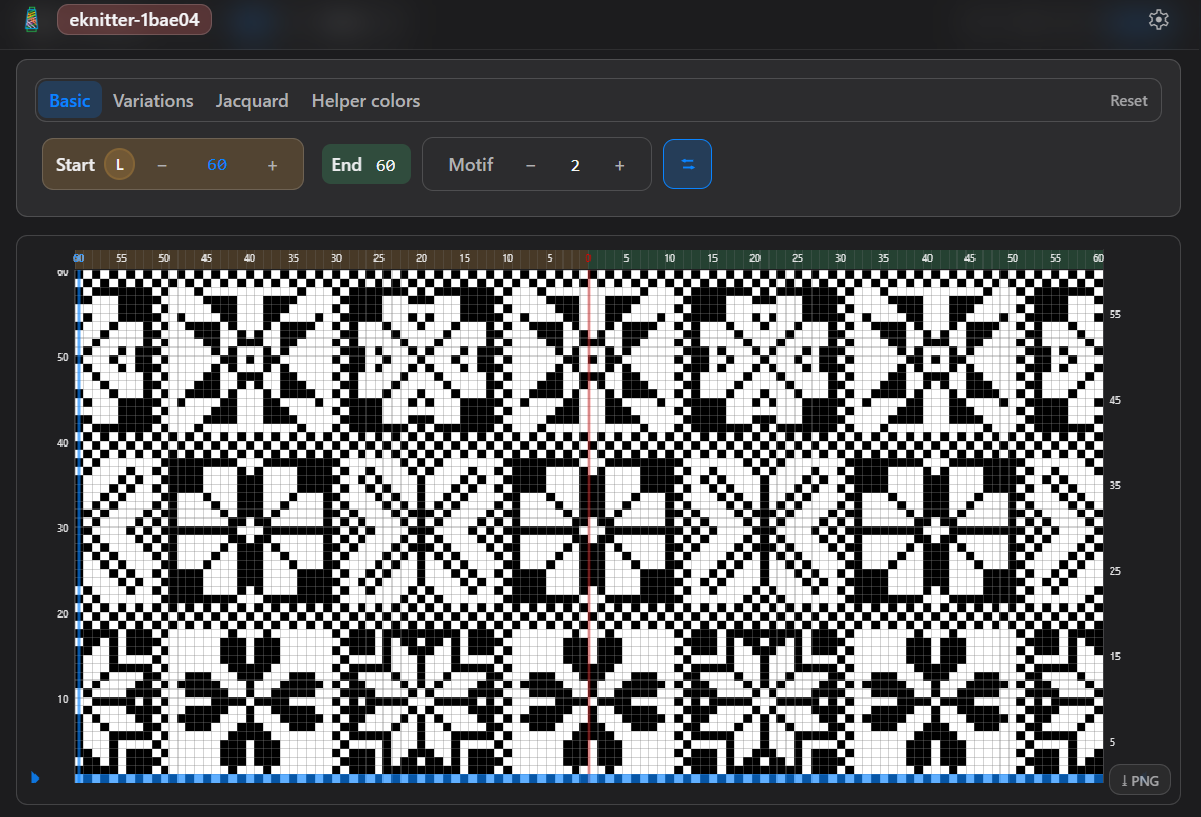
5.2 Set the Start (L/R + Needle Number)

In the Start area you will see:

What you seeWhat it does
L / RSelects the starting side (Left or Right)
NumberYour start needle
− / +Changes the needle number

How to use it

StepAction
1Tap L or R
2Adjust the needle with − / +
3Tap the number to type it directly


6) Center the Pattern – “Center with 0”

Above your pattern you’ll see a small number bar with a red 0.

ActionResult
Tap the red 0Your pattern is centered
Helpful when: Your pattern looks too far left or right.

7) Set Repeats (Motif Mode Only)

What you seeWhat it does
Fewer repeats
+More repeats
End (display)Shows where your pattern ends

8) Vertical Repeat (Arrow Toggle)

In Basic you’ll find a small arrow switch.

SwitchWhat it means
OnPattern is looping
OffPattern stops at the top

Choose the knitting row
Set the start position
Motif or full-bed knitting
Set or Center your pattern
Set repeats
Set Variations
Jacquard settings
Helper Colours
Start knitting
Change rows while knitting
LanguageDark Mode
Row legend
Advanced settings
Save settings


Button Panel

ButtonFunction
1Toggle download on /off
2Toggle endless repeat on /off    
CEStart pattern from 0 (only works when you saved the pattern on eKnitter)
RRGo one row back (only works when you saved the pattern on eKnitter)
CFGo one row forward (only works when you saved the pattern on eKnitter)
(M)Moves Menu to the left
(R)Menu to the
 .. 

Reset Wi-Fi

If your Wi-Fi network changes, you can update the Wi-Fi settings saved in your eKnitter.
There are three options to change or delete your Wi-Fi settings.

Option 1 — Change Wi-Fi in the WebApp (recommended)

Use this if your eKnitter is still reachable in your browser.

  1. Open your eKnitter WebApp
  2. Go to Settings / Config
  3. Select Wi-Fi
  4. Enter the new Wi-Fi name and password
  5. Tap Save

Your eKnitter reconnects automatically.


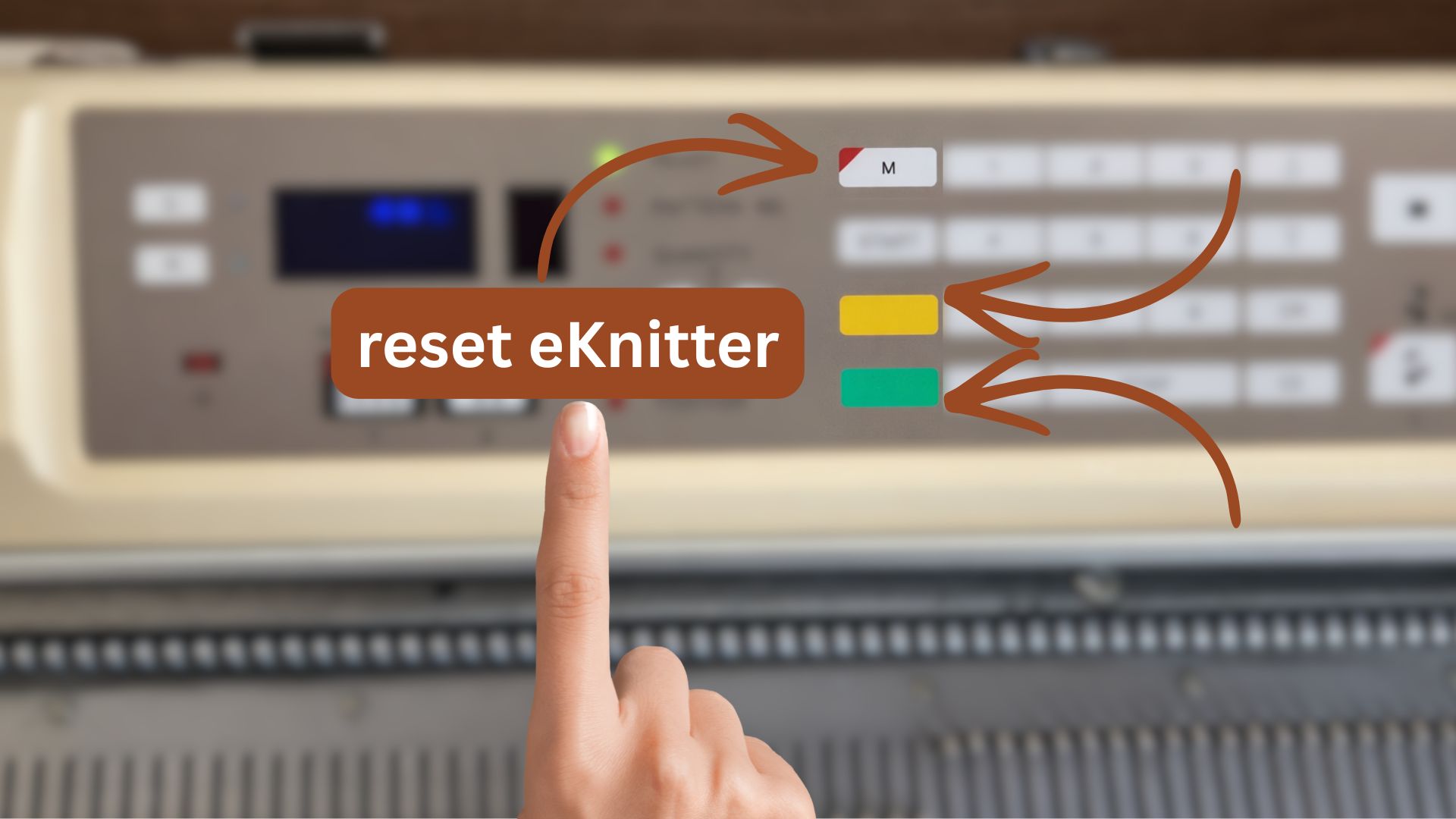
Option 2 — Reset Wi-Fi settings using the eKnitter buttons

Use this if the WebApp can no longer be reached.

  1. Turn on your eKnitter
  2. Press and hold M
  3. While holding M, press and hold the green button
  4. While holding both, press and hold the yellow button
  5. Keep holding all three until the display shows an X and the device restarts
  6. Release all buttons

Your eKnitter is now ready for Wi-Fi setup again.


Option 3 — Reset Wi-Fi using the controller board (advanced)

Use this only if buttons and WebApp no longer respond.

  1. Turn off your eKnitter
  2. Open the case carefully
  3. Locate the ESP boot/reset button on the controller board
  4. Press and hold the button
  5. While holding it, turn your eKnitter on
  6. Release when the display shows Setup Mode

Your eKnitter is now ready to be connected to Wi-Fi again.