Connect your eKnitter to Wi-Fi
Follow these steps to connect your eKnitter to your home Wi-Fi network. You only need a phone, tablet, or computer.
Connect to your eKnitter
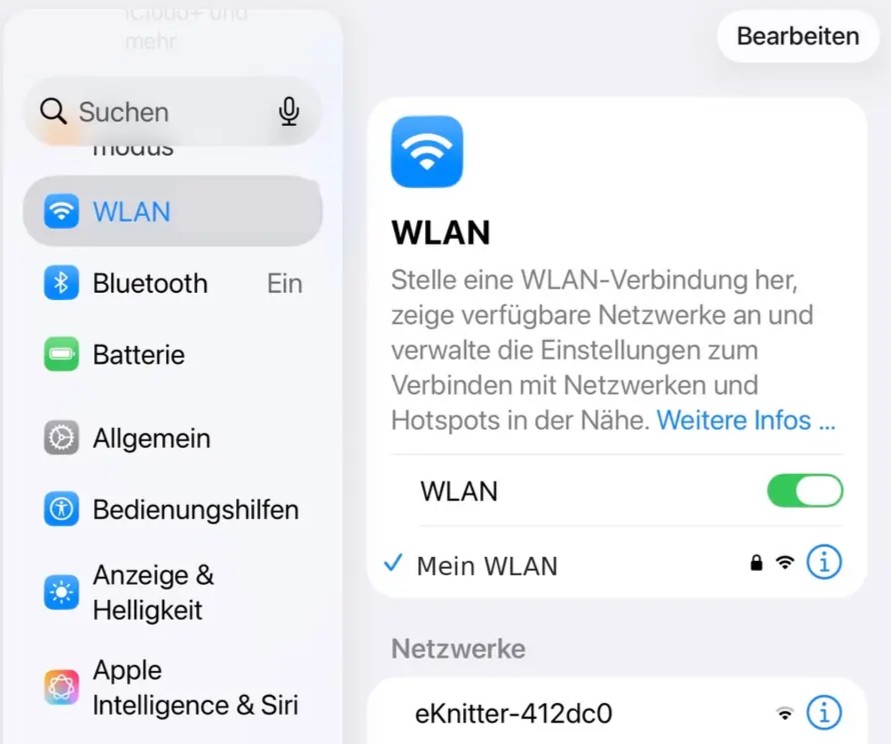
Open the Wi-Fi list on your phone, tablet, or computer.
Connect to the Wi-Fi network that starts with: eKnitter-…
Each eKnitter has its own name. You can find this name on the sticker on the eKnitter board.
Open the setup page
After connecting to the eKnitter Wi-Fi, the setup page may open automatically.
If it does not open automatically, open your browser and type: 192.168.4.1/
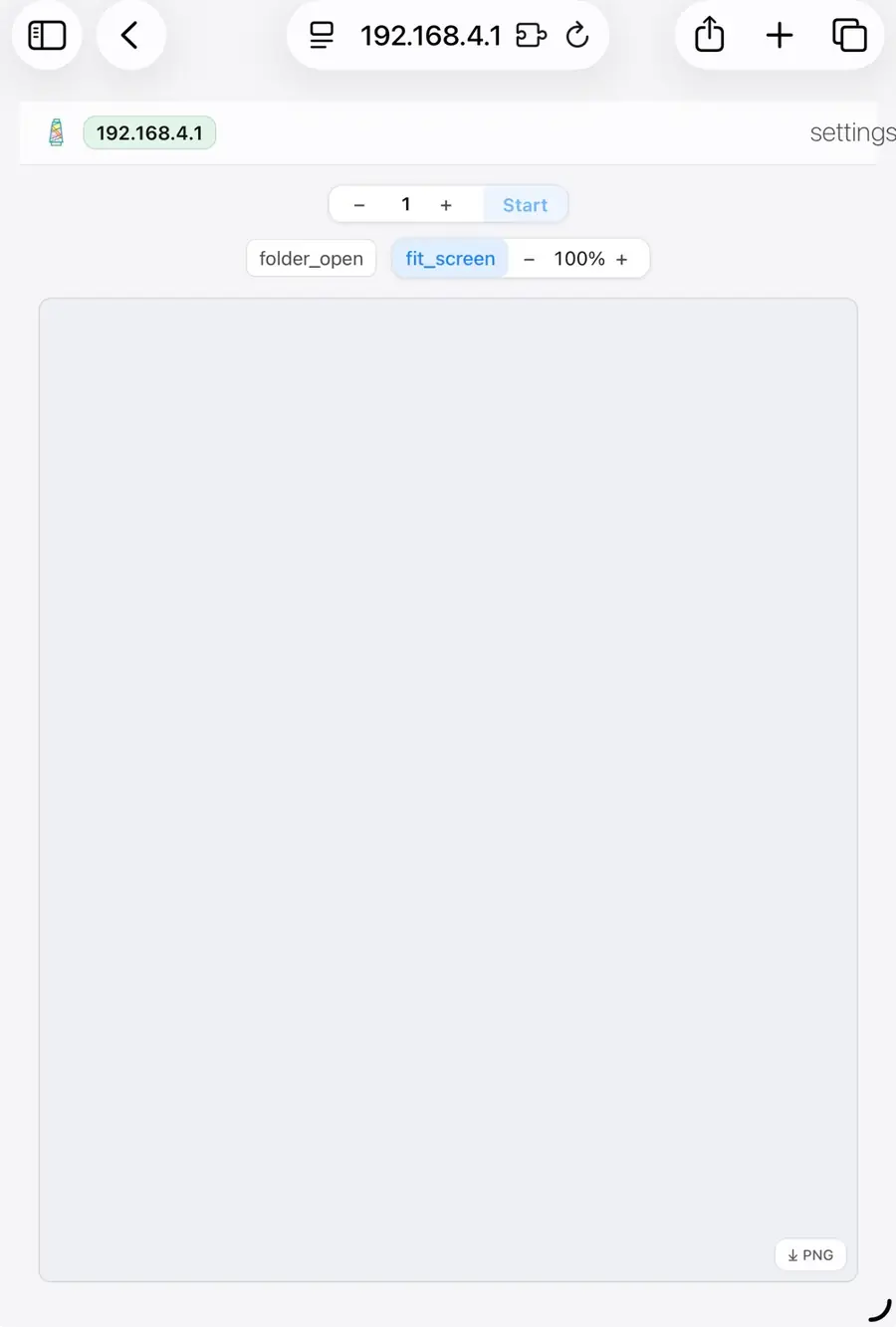
Apple devices: captive.apple.com
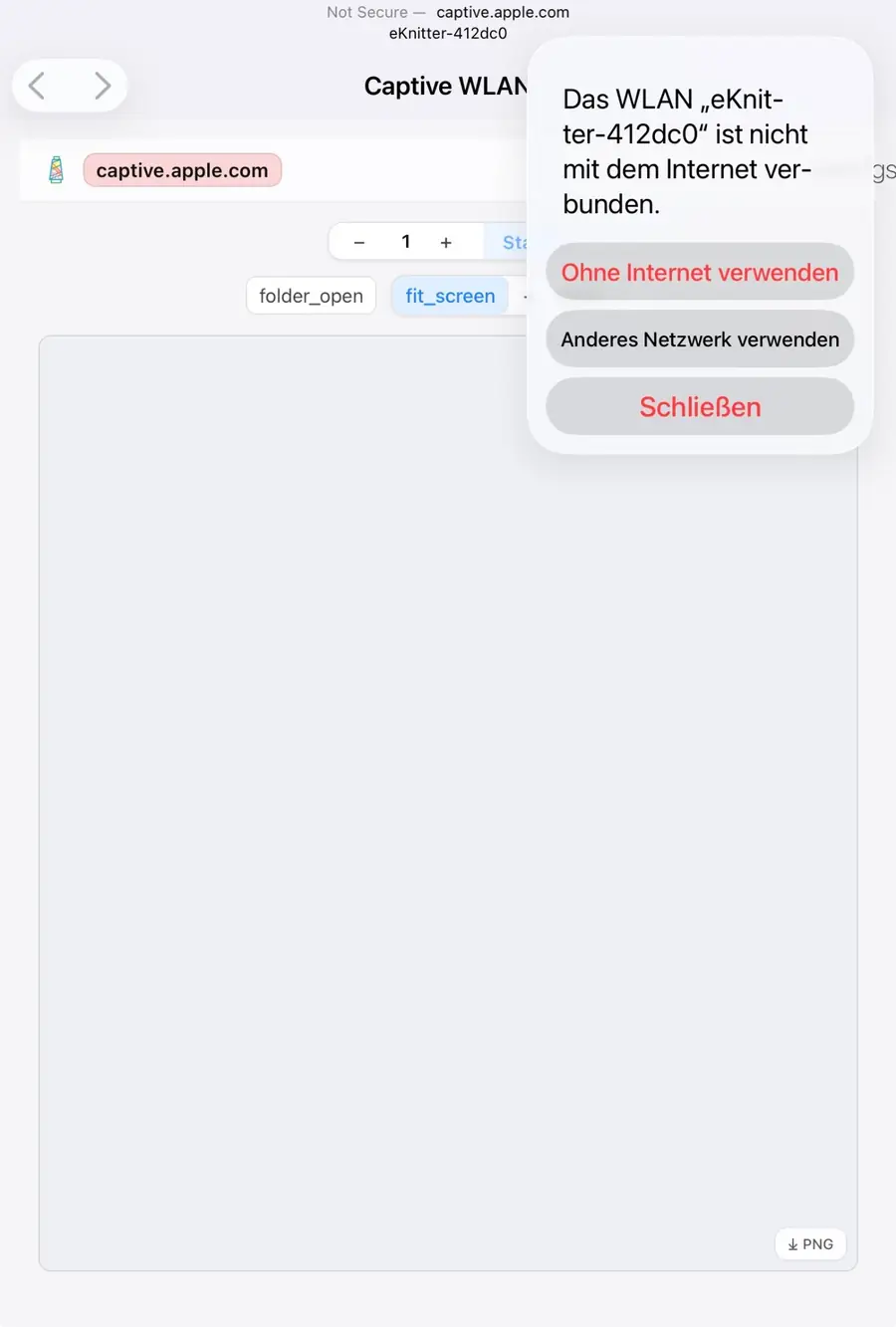
On iPhone or iPad, Apple may open a page called: captive.apple.com
It may appear in red.
This only means that the eKnitter Wi-Fi is not connected to the internet. That is normal during setup.
Check that you are on 192.168.4.1/
When you are on: 192.168.4.1
and the address badge is green, you are connected to the eKnitter setup page.
Go to Settings
On the eKnitter page, open: Settings
Enter your home Wi-Fi name in the field: WLAN SSID
Then enter your Wi-Fi password in the field: WLAN Password
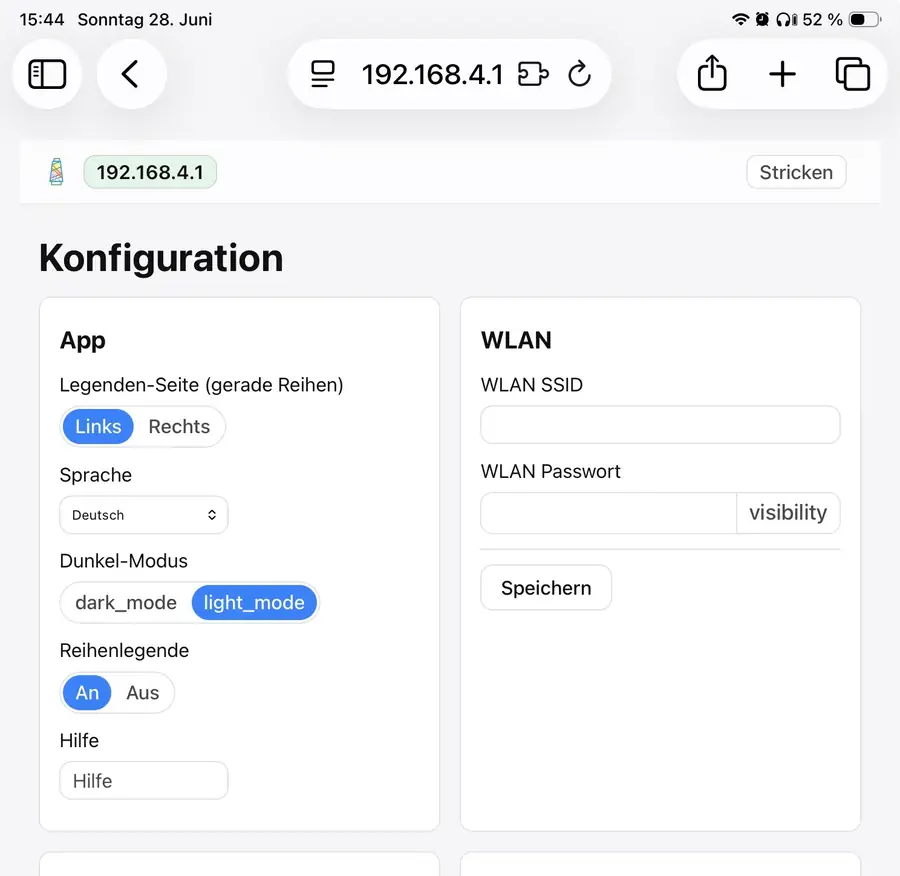
Save your Wi-Fi credentials
Tap: Save
The eKnitter will now try to connect to your home Wi-Fi.
If the Wi-Fi name and password are correct, the eKnitter should show a blue light. You should also see a Wi-Fi symbol on the eKnitter display.
Open the eKnitter WebApp
After the eKnitter is connected to your home Wi-Fi, reconnect your phone, tablet, or computer to your normal home Wi-Fi network.
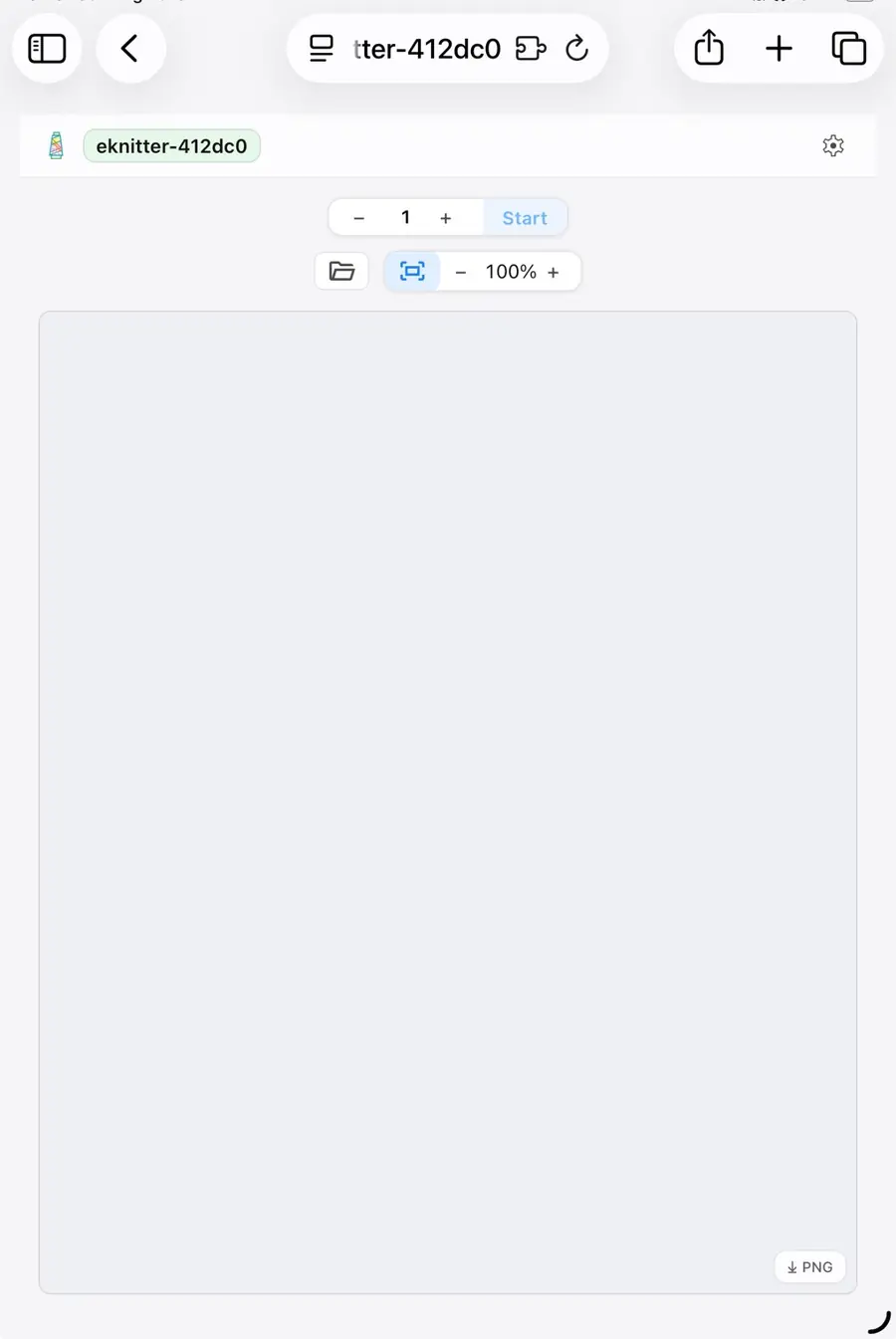
You can now open the eKnitter WebApp by typing your eKnitter name or IP address into your browser.
or the IP address shown on your eKnitter display.
If the Wi-Fi details were wrong
If the Wi-Fi name or password was entered incorrectly, the eKnitter cannot connect to your home Wi-Fi.
In this case, reset your eKnitter to delete the saved Wi-Fi details.
Wi-Fi Setup old firmware 4.10
From now on, your eKnitter will connect automatically whenever you turn it on.
If Wi-Fi does not connect
If the display is black or shows only an X, your Wi-Fi details were entered incorrectly and eKnitter cannot connect.
You will need to reset the Wi-Fi settings. Read: Reset Wi-Fi