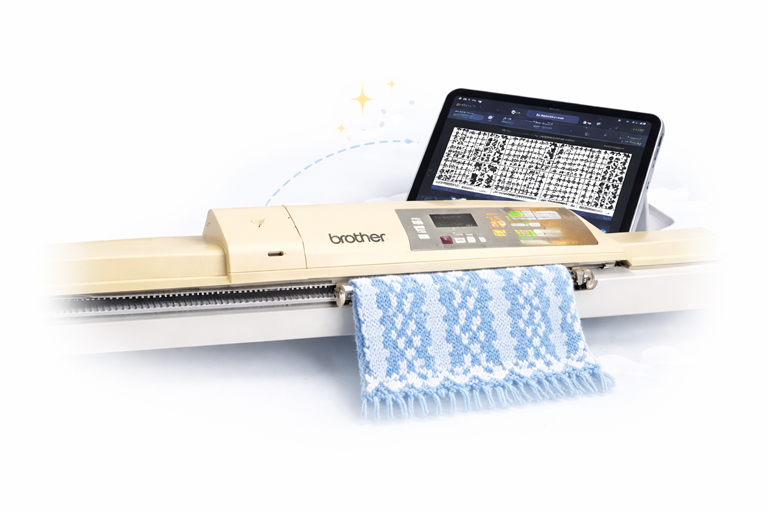
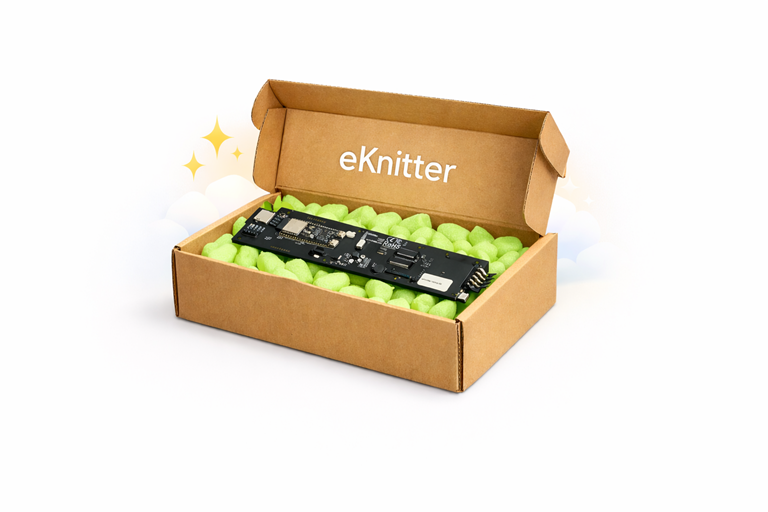
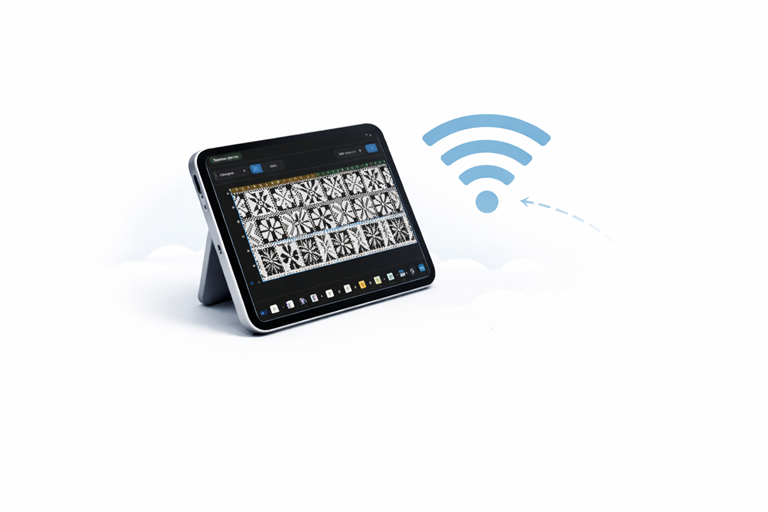
Step 3 – Access your eKnitter WebApp & Send Pattern
The new eKnitter WebApp is available for all eKnitters running Release version 5.27 or higher. Latest releases are available here.
Turn on your eKnitter and check the display. It must show Version 5.27 or higher.
Open the WebApp
Open a web browser on your phone, tablet, or computer and enter your personal eKnitter address:
http://eknitter-XXXXXX/
or via IP
http://XXX.XXX.X.XXX/
Each eKnitter has its own unique name and address.
Find your eKnitter name
You can find your personal eKnitter name in two places:
- On the display
Press the green button until the eKnitter name and IP address appear. - On the sticker on your device
Example:eKnitter-XXXXXX
Important
- Your eKnitter must be powered on
- It must be connected to Wi-Fi (Wi-Fi symbol visible on the display)
Only then can the WebApp be opened.
In the video below, I show how to send your pattern to your machine.
Tip
1. Save a Home Screen Link
Add eKnitter to your device so it’s always ready when you turn your machine on.
One tap, and you’re in — no typing, no searching.
On iPhone or iPad, tap Share and choose Add to Home Screen.
On Android, open the menu and choose Add to Home screen.
On Windows or Mac, open your browser menu and choose Create shortcut.
eKnitter will appear like an app on your device — always just one tap away.
2. Open with a QR Code
If your machine is used by more than one person, a QR code is the easiest way to get everyone started.
Create a QR code once, place it on your machine, and anyone can simply scan it with their phone.
No links to type. No setup. Just scan — and eKnitter opens instantly.